If you are using Rig Control, the Frequency, Mode, etc will be shown.
BPQ32 now supports WINMOR. WINMOR is a soundcard-based protocol, and is implemeted as standalone program, the WINMOR Virtual TNC, supplied by
The Amateur Radio Safety Foundation. It operates in two modes, ARQ which is an
error free connected mode, and FEC which is a datagram mode with some error correction, but is not error-free. ARQ is optimised for
message transfer on HF, I see it's main use to be mail forwarding on HF between BBS systems, or from a user PMS to the BBS.
It can be used for interactive access to the network, but isn't optimised for this use. BPQ32 supports using
FEC as a simple unconnected realtime QSO mode.
The Virtual TNC may be downloaded from the files section of the Yahoo WINMOR group.
The TNC needs write access to it's install directory, so don't install it in a protected directory, such as "Program Files", if
running on Vista or Win 7. Some configuration is done using
the Help/Basic Setup option of WINMOR TNC.exe. Set your Callsign and Locator, registration key if you
have one, and select the sound devices that you want to use. Normally you can leave the TCPIP
port number at the default of 8500. You only need to change this if you are already using that port,
or want to run two or more copies of WINMOR TNC.
The driver supports PTT control via a serial port, using the DTR and/or RTS control lines, or ICOM or Kenwood CI-V commands.
The driver now accepts calls to any of your APPLnCALLS, and routes connects to the specifed application.
The Autoconnect Application in BPQtoWINMOR.cfg is no longer needed, and will be ignored if present.
I have had a few problems with the Winlink TNC locking up, so I've added code to kill and restart the TNC if I don't
get a message from it for 30 minutes. There is also an option to kill and restart the TNC after each connection.
The driver is defined to BPQ32 as an External port, and needs some driver-specific configuration
The first line defines the IP address and Port of the WINMOR TNC, an optional PTT paameter,
and an optional PATH to the WINMOR TNC.exe file.
If PTT is omitted, VOX operation is assumed. If PATH is omitted, bpq32 won't start the WINMOR TNC,
and you will have to run it before starting bpq32.
Typical first lines are:
ADDR 127.0.0.1 8500
ADDR 127.0.0.1 8500 PTT DTR
ADDR 127.0.0.1 8500 PTT CI-V (or PTT CAT)
ADDR 127.0.0.1 8500 PATH C:\Winmor\Winmor TNC.exe
ADDR 127.0.0.1 8500 PTT CI-V PATH C:\Winmor\Winmor TNC.exe

Other PTT options are PTT RTS, PTT DTRRTS, PTT CM108, PTT HAMLIB
If you are running the TNC on a different machine to the Node, you can use program WinmorControl.exe to start or stop the TNC on that machine. To enable this mode, run WinmorControl.exe on the remote machine and enter REMOTE: before the path to the TNC, eg
ADDR 192.168.1.2 8500 PATH REMOTE:C:\Winmor\Winmor TNC.exe
If you are using the Rig Control feature, either for PTT or scanning,
add the RIGCONTROL command next.
There are two commands that can be used to modify the way the Channel Busy signal is used. By default, the node will consider
the channel when the WINMOR TNC reports it free, and will wait for up to 10 seconds if the channel is busy
before failing a connect request.
BUSYHOLD n
This defines the time the software waits after the Controller has reported the channel free before considering it free.
BUSYWAIT n
This changes the time the software will wait for a clear channel before failing a connect request.
Note that if you are sharing a radio between a WINMOR and SCS Pactor port, the busy signals from both controllers will be
combined - ie both must be clear before an outgoing connect will be allowed.
You can set a limit to the maximum time of a session
SESSIONTIMELIMIT n
Time is in minutes, and setting to zero or omitting statement sets no limit.
;
;	Sample Config for a WINMOR Port
;
PORT
 ID=WINMOR Port 1
 TYPE=EXTERNAL
 DLLNAME=WINMOR.DLL
 PORTCALL=CALLSIGN      ; Optional - set if you want to accept connects to a call other than the Node Call.
 INTERLOCK=n;           ; Optional - set if you have two ports sharing the same radio.
                        ; Set the same Interlock value on both ports.
 CONFIG                 ; Driver-Specific Configuration

 ADDR 127.0.0.1 8500 PTT CI-V PATH C:\Winmor\Winmor TNC.exe
 RIGCONTROL
 COM2 19200 ICOM IC7000 70
 5,14.103,USB,F1,W2
 5,14.112,USB,F1,W2
 5,18.1,USB,F1,W1
 ****
 CWID True
 BW 1600
 DRIVELEVEL 100

ENDPORT
You can have more that one WINMOR port. Just create a separate directory for each copy, and set a different
TCP Port in the Winmor TNC.ini and the BPQ32.cfg port config. Normally you would have a separate soundcard and
radio for each.
The software will append the BPQ32 Port Description to the Winmor TNC Window title, so you can tell which TNC corresponds to each port.
As a WINMOR TNC only supports a single connection (unlike ax.25 packet), a WINMOR
port must be allocated to a user before making connects. This is done using the ATTACH command. So if your WINMOR
port is BPQ32 port 3, enter
ATTACH 3
Possible responses are:
#BPQ11:GM8BPQ-2} Ok
#BPQ11:GM8BPQ-2} Error - Invalid Port // Port is not a WINMOR port.
#BPQ11:GM8BPQ-2} Error - Port in use // Port is in use.
Once attached to a port, you can issue commands to the Virtual TNC. See the documentation for the Virtual
TNC for a list of commands. Additionally, the "D" command disconnects and releases the TNC.
Connections are initiated using the C command (not CONNECT as shown in the TNC Documentation).
FEC mode is initiated by entering the FEC command after ATTACHing the port.
FEC can use either the 500 Hz or 1600 Hz Winmor modes. The 1600 mode is around 4 times as fast,
but needs around 6 dB more signal. Commands are:
FEC 1600 or
FEC 500
Once this command is entered, anything typed will be transmitted as an FEC datagram, preceeded by the user's callsign,
and will be displayed by any other stations in FEC mode. As the protocol is not able to correct all errors,
packets may have some corruption. Received blocks with an error will be preceeded by STX and followed by ETX.
These will display on BPQterminal as a 'blob'. Error checking is done in blocks of 16 chars.
While in FEC mode any Winmor ID packets will also be displayed.
Use the "D" command to exit FEC mode.
An ID Packet and CWID (if enabled) will be sent every 10 minutes and on leaving FEC mode.
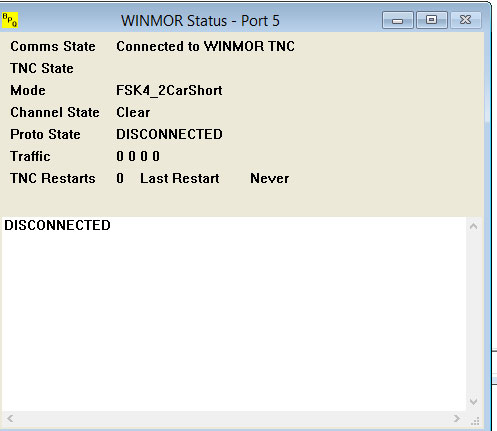
The WINMOR module creates a status window, so you can keep an eye on your connection to the WINMOR TNC.
If you are using Rig Control, the Frequency, Mode, etc will be shown.
Several options are available under the Actions menu
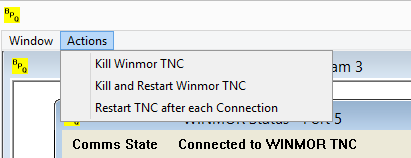
Kill Winmor TNC
Kills the Winmor TNC.
Kill and restart Winmor TNC
Kills and restarts the Winmor TNC.
Restart TNC after each Connection
Some users have had problems with the WINMOR TNC not functioning properly after running for a while. If this option is checked,
the TNC will be killed and restarted after each connection.
John Wiseman GM8BPQ/G8BPQ
Updated June 2020